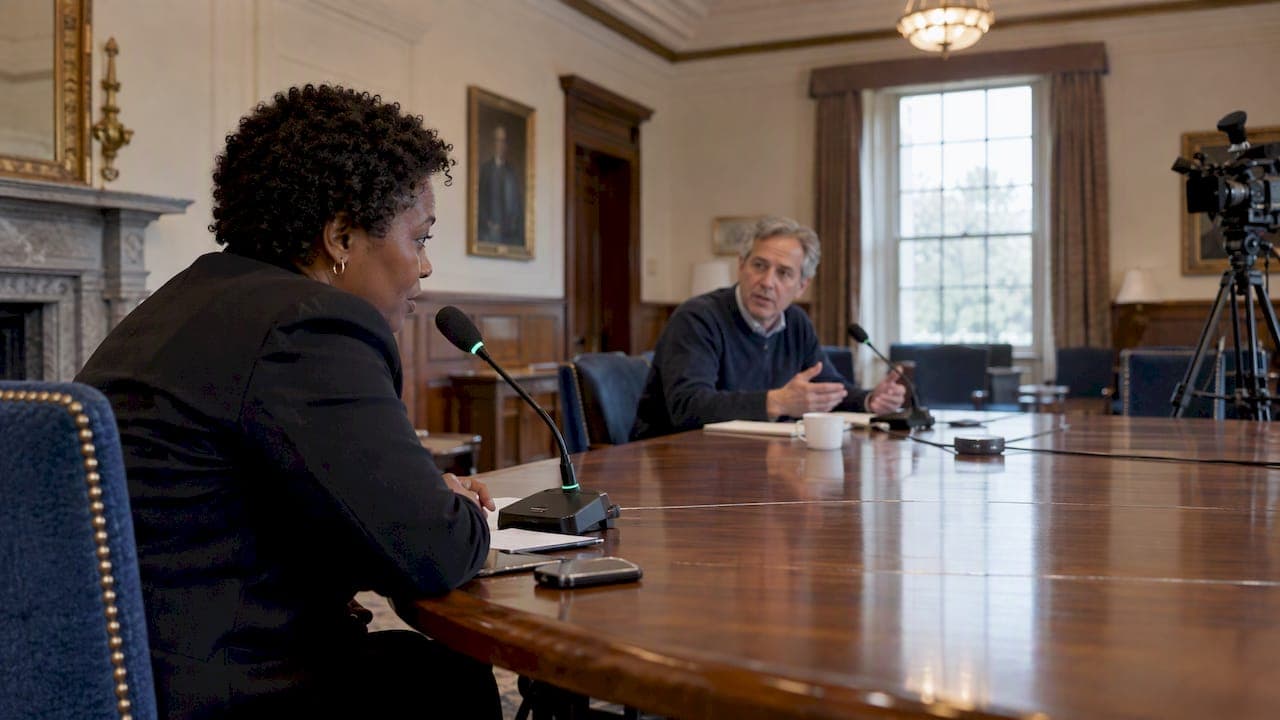
A reliable hybrid meeting setup needs a core kit of camera, microphone, speaker, and a stable network, plus one habit you cannot skip: testing the room from a remote participant's point of view before anyone else joins. That single test catches the framing, audio, and caption problems that usually go unnoticed until a remote attendee complains afterward.
TL;DR:
- Rooms seating more than eight people need a PTZ camera or multiple cameras; spend first on microphone coverage that reaches every seat.
- Use wired internet, separate guest traffic, and set up phone access as a backup; cable runs beyond 15 feet need active USB extension or PoE.
- Assign a virtual advocate to track chat and raised hands, and use a digital whiteboard so remote attendees can contribute directly.
- Consider a venue for large events or teams without AV support, and confirm wired network access, early setup time, and an on site contact.
Table of Contents
- Essential equipment: cameras, microphones, speakers, and cabling
- Room layout and camera placement for inclusive visibility
- Software and network setup: platform settings and redundancy
- Pre-meeting and run-of-show checklist
- Facilitation and etiquette for including remote participants
- Venue-hosted hybrid meetings: what to confirm before booking
- Security and privacy measures for hybrid meetings
- What actually matters when you're setting one up
- If you prefer a ready-made option: book a hybrid-ready venue
- FAQ
- Sources
Essential equipment: cameras, microphones, speakers, and cabling
Camera choice depends on room size more than budget. A small huddle room does fine with a static wide-angle webcam, but anything larger than a standard conference table benefits from a pan-tilt-zoom (PTZ) camera or a coordinated multi-camera feed, since a single wide shot makes people look distant and hard to read. Microsoft's Teams Rooms planning guidance notes that a wider field of view makes subjects appear smaller, so balancing lens angle against mounting distance matters more than chasing a high resolution spec sheet.
Microphone coverage is where most hybrid setups quietly fail. A single tabletop mic works for four people sitting close together, but anything bigger needs overlapping coverage so no seat becomes a dead zone. Lavalier mics suit a single presenter who moves around; ceiling arrays suit boardrooms where people face each other across a table.
- Camera: match field of view to room depth, and favor PTZ or multi-camera setups once the room seats more than eight people.
- Microphone: keep at least one pickup point within reach of every seated participant, and let coverage zones overlap rather than butt against each other.
- Speaker: separate the speaker from the microphone physically or use echo cancellation built into the unit to stop feedback loops.
- Cabling: USB-C handles most modern cameras and soundbars over short runs, but anything past 15 feet should move to active USB extension or PoE (Power over Ethernet) to avoid signal loss.
Budget tiers break down fairly predictably. An entry-level setup, a USB webcam, a tabletop speakerphone, and a laptop as the host device, covers a huddle room for under a few hundred dollars in hardware. A mid-range room adds a dedicated PTZ camera, a ceiling or boundary microphone array, and a touchscreen console for one-tap joining. Once a room needs dual displays, DSP-managed audio, or in-ceiling microphones for a space seating 30 or more, it's worth bringing in a certified AV integrator rather than assembling it piecemeal, since cabling runs, acoustic treatment, and device certification compound quickly in larger rooms.
Pro Tip: Buy the microphone first and the camera second. People will forgive a slightly soft picture, but garbled or dropped audio ends a hybrid meeting's credibility in seconds.
Room layout and camera placement for inclusive visibility
The goal of room layout is simple to state and easy to get wrong: remote participants need to see every face in the room, and in-room participants need to see remote attendees just as clearly. University of Michigan's hybrid meeting guidance recommends positioning the room camera so it captures all in-room attendees and projecting remote participants prominently on a shared screen, so the room treats them as present rather than as an afterthought on a laptop screen.
Camera height matters more than most planners expect. Mounting a camera at roughly eye level, centered under or above the main display, keeps eye lines natural instead of looking down at attendees. In rooms with real depth, a single camera forces a tradeoff between seeing everyone and seeing anyone clearly, which is why multiple cameras or a PTZ unit with preset positions solve the problem better than one wide lens.
Display choices shape how included remote attendees feel. A single screen works for small rooms, but a dual-display setup, one for remote faces and one for shared content, keeps both visible at once instead of forcing a constant toggle. Larger rooms sometimes add a confidence screen near the front so presenters can see remote reactions without turning their backs to the room.
- Seat in-room attendees within microphone range first, then adjust camera framing to fit the seating rather than the reverse.
- Use soft, diffused front lighting rather than overhead fluorescents, since even lighting keeps faces visible without harsh shadows.
- Avoid seating anyone with a window directly behind them, since backlighting turns faces into silhouettes.
- For rooms with hard surfaces and echo, add acoustic panels or consider a DSP (digital signal processor) that manages gain across multiple microphones automatically.
Acoustic treatment often gets skipped because it's invisible compared to a camera or screen, but a room with bare walls and a hard floor can undo even good microphone placement through echo alone.
Software and network setup: platform settings and redundancy
Platform settings decide whether remote attendees feel like participants or spectators. Pin or spotlight settings should prioritize whoever is speaking, whether they're in the room or remote, and screen sharing should default to a layout that keeps remote faces visible alongside shared content instead of hiding them behind a full-screen slide deck.
- Turn on live captions or automatic speech recognition (ASR) before the meeting starts, and read a few lines during setup to confirm accuracy with your room's microphone setup.
- Confirm the room system is on a wired connection rather than Wi-Fi whenever possible, since a wired connection removes one of the most common causes of dropped video.
- Separate guest Wi-Fi traffic from the meeting room's network or apply quality of service (QoS) rules so a large file download elsewhere in the building doesn't degrade the call.
- Set up a backup join method, a phone dial-in number and a secondary device, so a lost connection doesn't end the meeting for remote attendees.
- If recording the session, confirm storage location and sharing permissions before the meeting rather than scrambling afterward.
Pro Tip: Keep a cellular hotspot charged and ready in the room. If the primary network drops, you can move content sharing to one presenter's device and keep audio running through phone dial-in without losing the meeting entirely.
Pre-meeting and run-of-show checklist
The single most effective step before any hybrid meeting is a practice call that mirrors what a remote participant will actually see and hear. University of Colorado's hybrid meeting best practices recommend running this test from both the in-room and remote perspectives, since testing only from inside the room misses exactly the problems remote attendees will experience.
- Join the meeting from a separate device, ideally outside the room, and check camera framing, audio clarity, screen share legibility, and caption accuracy.
- Confirm the mobile view looks reasonable too, since a portion of remote attendees will likely join from a phone.
- Assign roles ahead of time: a host to run the agenda, a virtual advocate to monitor chat and raised hands, an AV point person to handle technical issues, and a note-taker to capture decisions.
- Have the AV point person arrive at least 15 minutes early to verify microphones, display output, and network connection before anyone else arrives.
- If feedback or echo appears during setup, mute all in-room laptops that aren't the host device first, since duplicate audio pickup is the most common cause.
If your room lacks dedicated hybrid equipment, a workable fallback is to have in-room participants join individually on muted laptops while a single host device handles room audio and video, which keeps everyone digitally present without creating feedback loops.
Facilitation and etiquette for including remote participants
Good equipment only gets a hybrid meeting halfway there. Facilitation decides whether remote attendees actually get to speak. A dedicated virtual advocate, someone whose job is to watch chat and raised hands and bring remote voices into the conversation, solves this more reliably than hoping the host remembers on their own.
- Pace the agenda deliberately: some facilitators use a 40/20/40 split, giving the first 40% to context-setting, the middle 20% to open discussion, and the last 40% to decisions and next steps, adjusting as the room's dynamic requires.
- Replace physical whiteboards with digital whiteboards during brainstorming, since remote participants can contribute directly instead of watching a static camera feed of someone else's handwriting.
- Share the agenda and any documents before the meeting, and share notes afterward, so remote attendees aren't piecing context together in real time.
- Announce recording explicitly at the start, and confirm captioning accommodations are active for anyone who needs them.
Venue-hosted hybrid meetings: what to confirm before booking
Not every team wants to own and maintain hybrid equipment, and venues that host meetings regularly often have hybrid-capable rooms already built out. Our own hall at Ambassador Club spans 6,000 square feet with a built-in projector and large projection wall, which covers the display half of a hybrid setup without a planner needing to bring anything.
When evaluating any venue for a hybrid meeting, confirm these items during the walkthrough:
- AV access: can you connect your own laptop or conferencing device directly, and is there a built-in display or projector already in place?
- Network provisioning: is there a dedicated or wired connection available, separate from general guest Wi-Fi?
- Load-in time: how early can your AV person arrive to test before guests arrive?
- On-site contact: is there a named person to reach if something breaks mid-event?
A venue-hosted setup tends to make more sense than a DIY office setup when the event is one-time, guest count is high, or the host organization doesn't have in-house AV support to maintain equipment between uses.
Security and privacy measures for hybrid meetings
Hybrid meetings widen the attack surface compared to an in-person-only gathering, since both a physical room and a digital join link need protection. Require a meeting link with a waiting room or passcode rather than an open join link, and avoid posting the link anywhere public.
Assign the AV point person or host to monitor the participant list during the call and remove anyone who shouldn't be there, especially for meetings involving confidential business decisions. If recording, store the file in a location with restricted access rather than a shared folder open to the whole organization, and tell attendees at the start that recording is happening.
For the physical side, confirm who has access to the room's network jack or guest Wi-Fi credentials, since an unsecured room network can expose the same meeting to risks a secured digital link already solved. Separating guest Wi-Fi from the meeting room's network, already useful for bandwidth reasons, also limits who can reach the call's audio and video hardware directly.

What actually matters when you're setting one up

After watching enough hybrid meetings go sideways, the pattern is consistent: the rooms that work aren't the ones with the most expensive camera, they're the ones where someone tested the call from a remote device beforehand and assigned a person to watch chat during the meeting. Those two habits fix more problems than any hardware upgrade.
When budget is tight, spend on the microphone before the camera, and use a digital whiteboard instead of buying a second display. Equipment matters less than the discipline of checking it works from the other side of the call.
— MARTIN
If you prefer a ready-made option: book a hybrid-ready venue
Assembling a hybrid setup from scratch means buying cameras, testing microphones, and hoping the network holds up on the day. Booking a space that already has the room solved removes that risk and the coordination burden that comes with it.

Our hall at Ambassador Club seats up to 200 guests across 6,000 square feet, with a built-in projector and large projection wall already in place for content sharing, plus a full commercial kitchen if your event includes a meal component.
- A package covers the venue rental with setup and cleaning included.
- Corporate Event Space and other packages cover weddings, anniversaries, charity events, and more under the same comprehensive approach.
- A security deposit and cleaning fee apply, with details available on our FAQ page.
If your event calls for a dedicated production studio instead, The Slate Space in Providence offers live-streaming and video production support worth considering for content-heavy formats. For teams coordinating attendee transportation to an in-person hybrid gathering, Austin Apex's guide to corporate event transport is a useful planning reference. To check availability for your date, visit our booking page.
FAQ
What is a hybrid meeting format?
A hybrid meeting format combines in-person attendees in a physical room with remote attendees joining by video, using shared cameras, microphones, and screens so both groups can see and hear each other. The format requires equipment and facilitation choices that specifically address the remote experience, not just the in-room one.
What is the 40/20/40 rule for meetings?
It's a flexible guideline rather than a fixed formula, meant to keep hybrid meetings from running long on discussion and short on outcomes.
What equipment is needed for hybrid meetings?
A functional hybrid meeting setup needs a camera, microphone, speaker, a host device to run the meeting software, and a stable network connection. Microsoft's Teams Rooms planning guidance recommends adding a touchscreen console and appropriate displays as the room size grows, with a soundbar or separate certified microphones depending on how many people are in the room.
What are some good icebreakers for a hybrid meeting?
Icebreakers that work for hybrid groups typically use a shared digital tool, like a poll or a collaborative document, rather than anything that favors people physically in the room. A quick poll question displayed on the shared screen or a round of one-word check-ins read aloud by the host both work well because remote and in-room attendees participate the same way.
How do I test a hybrid meeting setup before it starts?
Join the call from a separate device, ideally from outside the room, and check camera framing, audio clarity, caption accuracy, and screen share legibility exactly as a remote attendee would experience them. University of Colorado's hybrid meeting guidance treats this remote-perspective test as the standard pre-meeting step because in-room clarity doesn't guarantee a good remote experience.
Sources
- Hybrid meeting technology best practices — University of Colorado OIT
- Hybrid meetings — U-M Information and Technology Services
- Microsoft Teams Rooms planning guidance — Microsoft Learn